Google Classroom Leave-ability Checker
Not sure why the "Leave" button is grayed out? Answer these questions to find out your status and next steps.
What type of email do you use for Google Classroom?
Do you know if your school administrator has restricted student enrollment?
If unsure, assume it is restricted for school accounts as this is the default safety setting in many districts.
Key Concepts
- FERPA/GDPR: Laws requiring schools to maintain accurate records of student activity and grades.
- Data Ownership: School accounts belong to the institution; personal accounts belong to you.
- Archiving: A safe alternative to leaving that cleans your view without deleting data or breaking admin links.
You try to click "Leave" on a course in Google Classroom, and the button is grayed out. It’s frustrating, especially if you accidentally joined a class or finished a semester months ago. But here’s the thing: this isn’t a bug. It’s a feature designed by Google to protect data integrity within educational institutions.
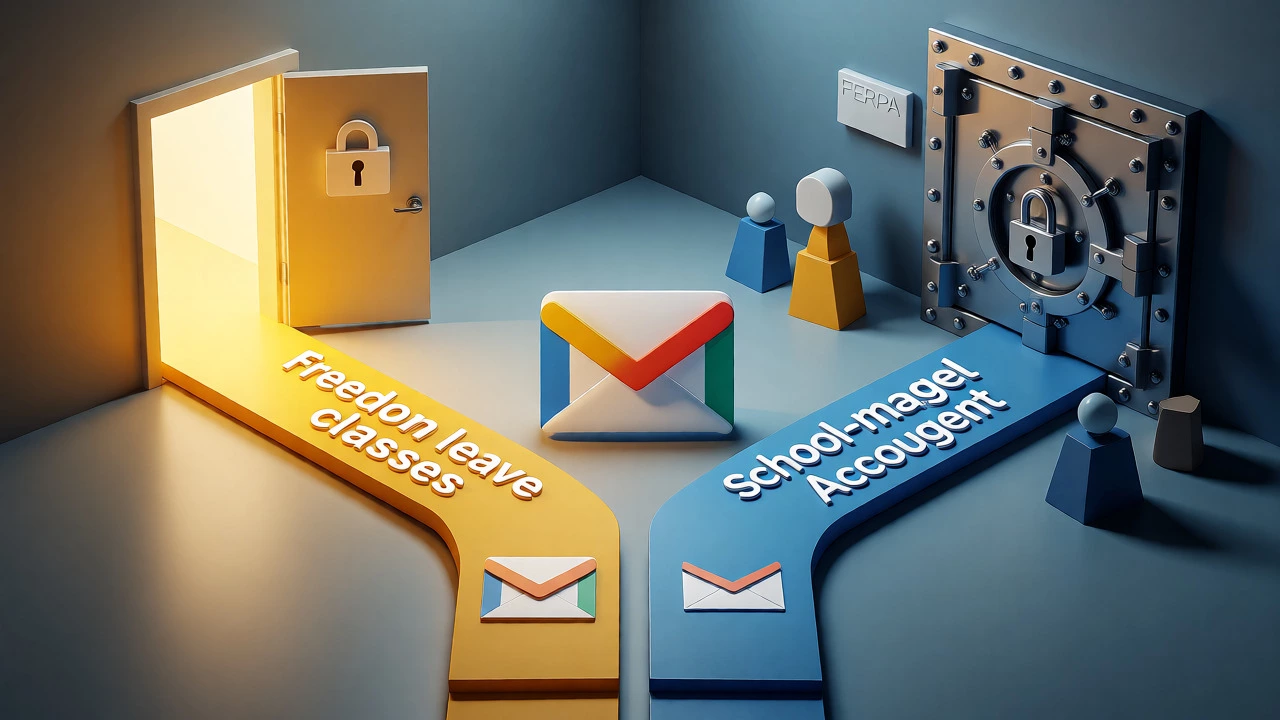
If you are a student using a personal Gmail account, you can usually leave. If you are using a school-issued Gmail account managed by your district, you often cannot. Why? Because in the world of G Suite for Education (now Google Workspace for Education), the administrator holds the keys. They decide what data stays, who sees it, and when it gets archived.
The Administrator’s Control Panel
Think of your school’s Google environment like a company intranet. When you join a class, you aren’t just signing up for homework; you’re entering a controlled digital workspace. School IT administrators configure settings that restrict students from removing themselves from courses. This prevents accidental data loss. Imagine a student dropping a history class two days before finals because they didn’t want to do the essay. If they could just hit "Leave," their submission history might vanish from the teacher’s view, causing chaos during grading.
Administrators can toggle a setting called "Student enrollment." If this is set to "Locked" or restricted, only teachers or admins can add or remove students. This ensures that the roster matches the official school database. If you need to leave, you have to ask your teacher to remove you, or wait until the admin runs an end-of-year cleanup script.
Personal vs. School Accounts: The Big Difference
Your ability to leave depends entirely on which type of email address you used to sign up. This is the most common point of confusion.
| Feature | Personal Account (@gmail.com) | School Account (@school.edu) |
|---|---|---|
| Can Student Leave? | Yes, usually anytime. | No, unless permitted by Admin/Teacher. |
| Data Ownership | Student owns the data. | School/District owns the data. |
| Removal Method | Click "Leave" button. | Ask Teacher to "Remove" you. |
| Privacy Settings | Managed by user. | Managed by CIPA/FERPA compliance rules. |
With a personal account, you have full autonomy. You joined, so you can quit. With a school account, you are part of a managed domain. Your login credentials belong to the institution. They track your activity for attendance and safety monitoring. Allowing you to leave freely would break the audit trail required by laws like FERPA (Family Educational Rights and Privacy Act) in the US or GDPR in Europe.
How Teachers Actually Remove Students
Since you likely can’t press the button yourself, you need to know how the process works on the other side. Teachers don’t always realize students are stuck in old classes. They have to go into the "People" tab of their classroom, find your name, click the three dots next to it, and select "Remove."
When a teacher removes you, you lose access immediately. Your assignments disappear from your stream. However, the teacher keeps all your submitted work. This is crucial for record-keeping. If you dispute a grade later, the teacher needs proof you submitted the file. If you had left voluntarily, some systems might archive the data differently, but removal keeps it active in the teacher’s view until the course itself is deleted or archived.
Pro tip: Send a polite email to your teacher. Don’t just say "remove me." Say, "I am no longer enrolled in [Class Name] and would like to be removed from the roster to clear my dashboard." Teachers appreciate clarity.
What Happens to Your Data When You Leave?
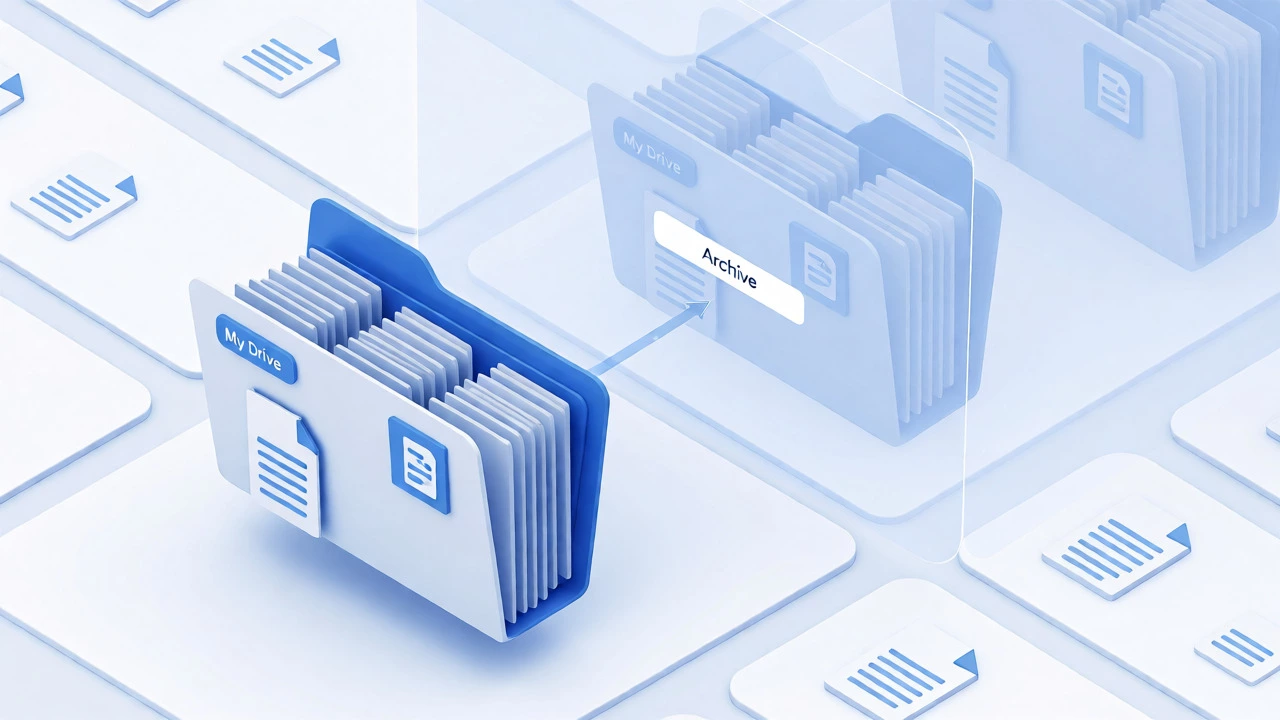
This is where things get technical. Leaving doesn’t delete your files. It just hides them from your view. If you saved copies of your assignments to Google Drive, those files remain in your "Shared with me" folder. You should manually move them to your own "My Drive" folder if you want to keep them permanently.
If you leave a class, any documents created directly inside Classroom (like drafts) might become inaccessible if you don’t have edit rights anymore. Always check your Drive folders before leaving. Once you are out, you can’t peek back in to download a lost PDF. Make sure you’ve backed up everything important first.
Archived Classes: The Alternative to Leaving
Many students hate seeing old classes cluttering their main screen. Instead of trying to force a removal, consider archiving. Archiving moves the class to a separate section at the bottom of your list. It cleans up your view without breaking administrative links.
To archive, go to the Classwork tab, click the menu icon, and select "Archive." For school accounts, even if you can’t leave, you can often still archive. This is the best way to tidy up your digital space while waiting for the admin to clean up the backend. It satisfies the psychological need for organization without violating the strict data policies of your school district.
Troubleshooting: What If I Really Need Out?
If you are stuck in a class from last year and your teacher has retired or changed schools, you might feel stranded. Here is the hierarchy of solutions:
- Email the current teacher: Even if the class is inactive, the owner might still have access.
- Contact IT Support: School admins have super-user powers. They can bulk-remove students from old courses. Submit a ticket if enough students are affected.
- Wait for Auto-Archive: Many districts run scripts every summer that automatically archive or remove classes older than one academic year. Patience often solves this.
- Check for "Unenrolled" Status: Sometimes you are already removed but the cache hasn’t updated. Log out and log back in, or clear your browser cookies.
Remember, Google Classroom is built for institutional efficiency, not individual convenience. The restrictions exist to ensure that grades, attendance, and submissions remain consistent across thousands of students. While it feels restrictive, it protects the validity of your educational record.
Why is the "Leave" button grayed out for me?
The button is grayed out because your school administrator has restricted student enrollment changes. This is common for school-managed accounts to prevent accidental data loss and maintain accurate rosters.
Will I lose my grades if I leave a class?
No, your grades remain with the teacher. However, you will lose immediate access to view them. If you need to see past grades, ask your teacher for a report before being removed.
Can I rejoin a class after leaving?
Yes, if you have the class code. However, if you were removed by a teacher, you may need their permission to rejoin depending on the class settings. Some classes lock re-enrollment after a certain date.
Does leaving delete my files in Google Drive?
No, it does not delete files. Files you created stay in your Drive. Files shared with you may disappear from your view if permissions change. Always move important files to "My Drive" before leaving.
How do I clean up old classes if I can't leave?
Use the "Archive" function. This moves the class out of your main view without requiring administrative permission to remove. It keeps your dashboard clean while preserving data integrity.